Your first workspace
Add a repository, run a task in a workspace and open its pull request.
Add a repository
On the welcome screen, press Open project or Clone repository. Later, use Add repository at the bottom of the sidebar.
- Open project asks for a folder. The folder must be inside a git repository. Korev adds the repository root.
- Clone from URL asks for a Git URL and clones it into
~/Library/Application Support/Korev/repos/.
Korev uses origin/HEAD as the default branch. If that is not set, it uses the current branch, then main. To change it, open Settings → Repositories → your repo → Default branch.
Create a workspace
Press ⌘N (or New workspace in the sidebar, or the + on a repository row). Describe the task and press Enter.
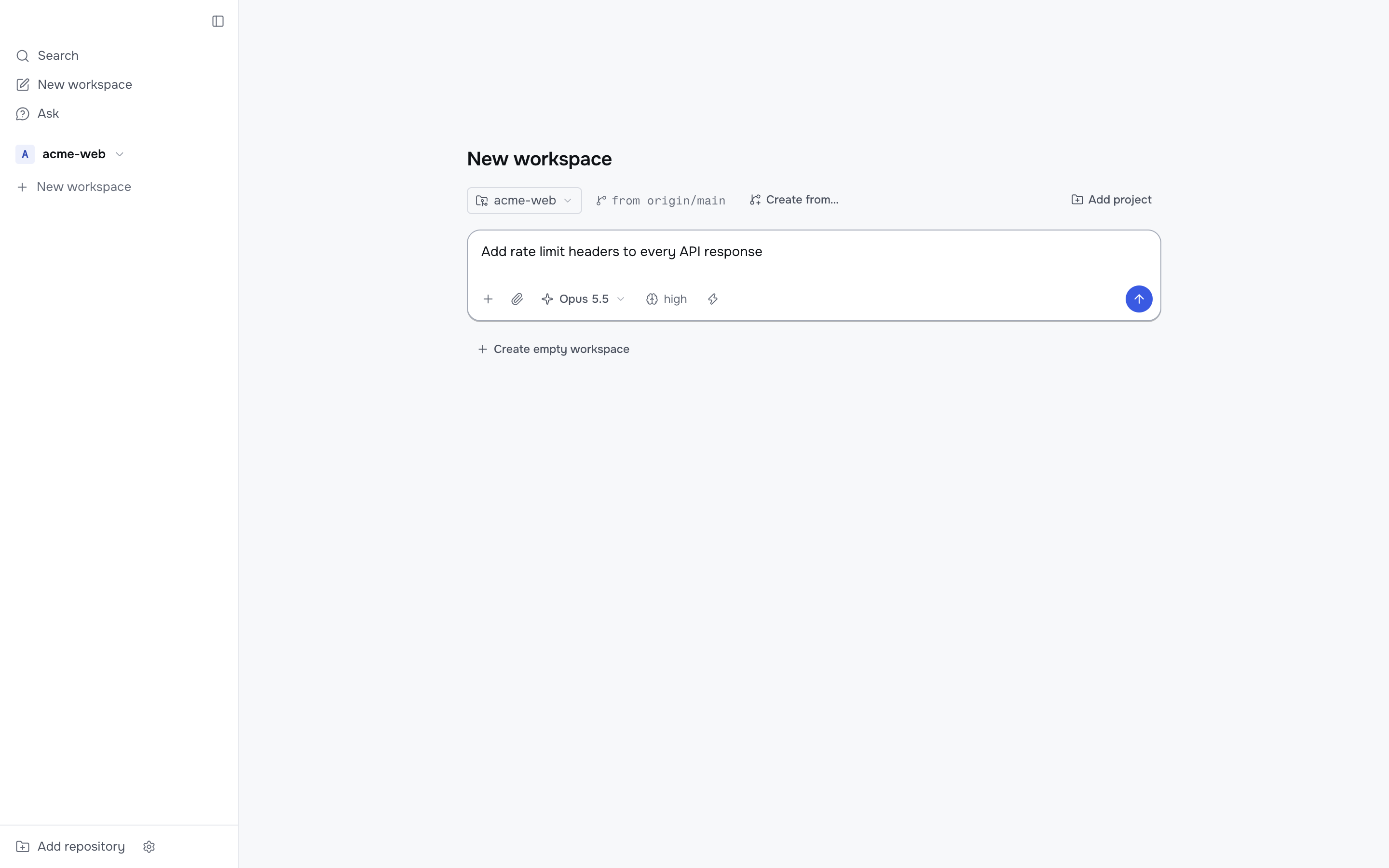
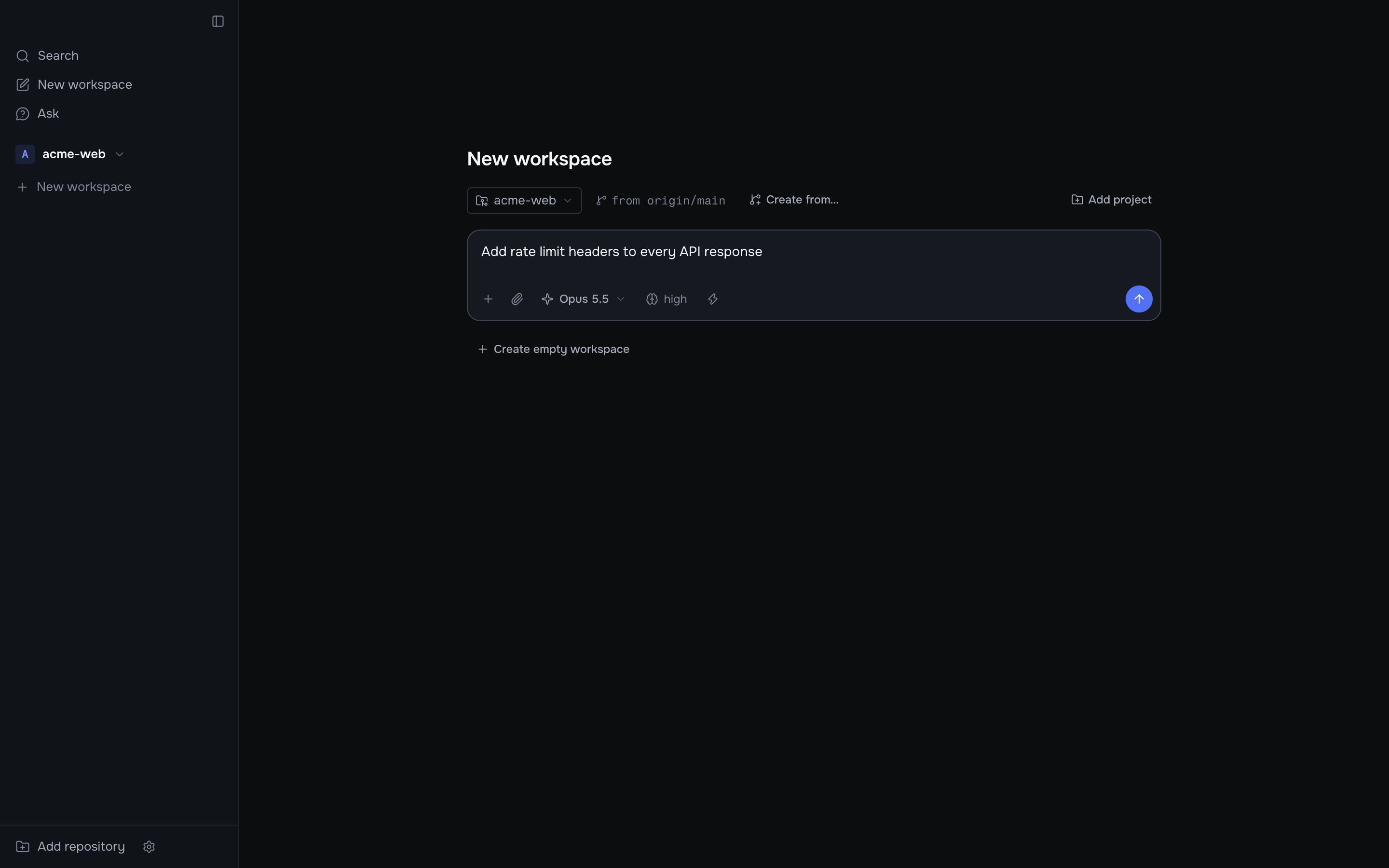
Korev then:
- Fetches
origin/<target branch>. - Creates a git worktree on a new branch from it.
- Creates a
.context/folder for notes and attachments. Git ignores it. - Copies your gitignored
.env*files from the main checkout. See Files to copy. - Runs your setup script, if you have one.
- Sends your task to the agent.
To make a workspace without a task, press Create empty workspace. To start from an existing branch, pull request or GitHub issue, press Create from… (⌘I). See Create from a branch, PR or issue.
Work with the agent
The agent's text, tool calls and file changes stream into the chat. While it runs:
- Send another message to steer it.
- Press ⌘⇧⌫ or the stop button to stop it.
- Open the Changes tab in the right panel to see the diff against the target branch.
- Open the Terminal tab (⌘J) for a shell in the worktree.
When the agent finishes, or needs your input, Korev shows a notification if the window is not in focus.
Open a pull request
Press Create PR in the workspace header (⌘⇧P). The agent commits, pushes and opens the pull request with gh. The same button then walks you through fixing checks, merging and archiving. See Review and merge.
Archive the workspace
Press Archive (⌘⇧A) when you are done. Korev stops the agents, runs your archive script and removes the worktree. The branch stays. Archived workspaces are listed under History in the sidebar, and you can restore them.
Next steps
- Configure your repository so setup and your dev server run by themselves.
- Read how workspaces work.